If you’re integrating a Riverdi STM32 display module, the wrong External Loader doesn’t always throw an error. It can just as easily leave your project’s graphics missing or outdated. Riverdi provides a matched loader for each module family rather than a generic one, because each module uses its own external memory configuration. The sections below explain when this is handled for you automatically, and when you need to check it yourself.
Why it matters – internal vs. external flash
When programming Riverdi STM32 Embedded Display modules, it is important to remember that the firmware may use not only the STM32 microcontroller’s internal flash memory, but also the external flash memory available on the module.
In TouchGFX applications, this external memory is often used to store graphical assets such as images, fonts, and other GUI resources.
To allow STM32 programming tools to correctly access and program this external memory, the appropriate External Loader (.stldr) must be used.
What is an External Loader?
STM32CubeProgrammer can program the microcontroller’s internal flash memory directly. External memory connected through interfaces such as QSPI or OctoSPI, however, requires additional information about how the memory should be initialized and accessed.
This is exactly what the External Loader provides. The .stldr file contains the routines required by ST programming tools to perform operations such as:
- initializing the external memory interface
- erasing the external flash
- programming data
- reading data
- verifying the programmed content
Programming from TouchGFX Designer (usually automatic)
When using TouchGFX Designer, the process is usually straightforward. Templates prepared for Riverdi modules already include the configuration required to support the external flash memory. When using Run on Target, the programming process is configured so that the appropriate External Loader is used.
From the user’s point of view, external memory programming may therefore appear to happen automatically. In a typical TouchGFX project, there is usually no need to manually select the loader every time. The loader is generated inside the project’s GCC folder as soon as the project is created from a Riverdi template.
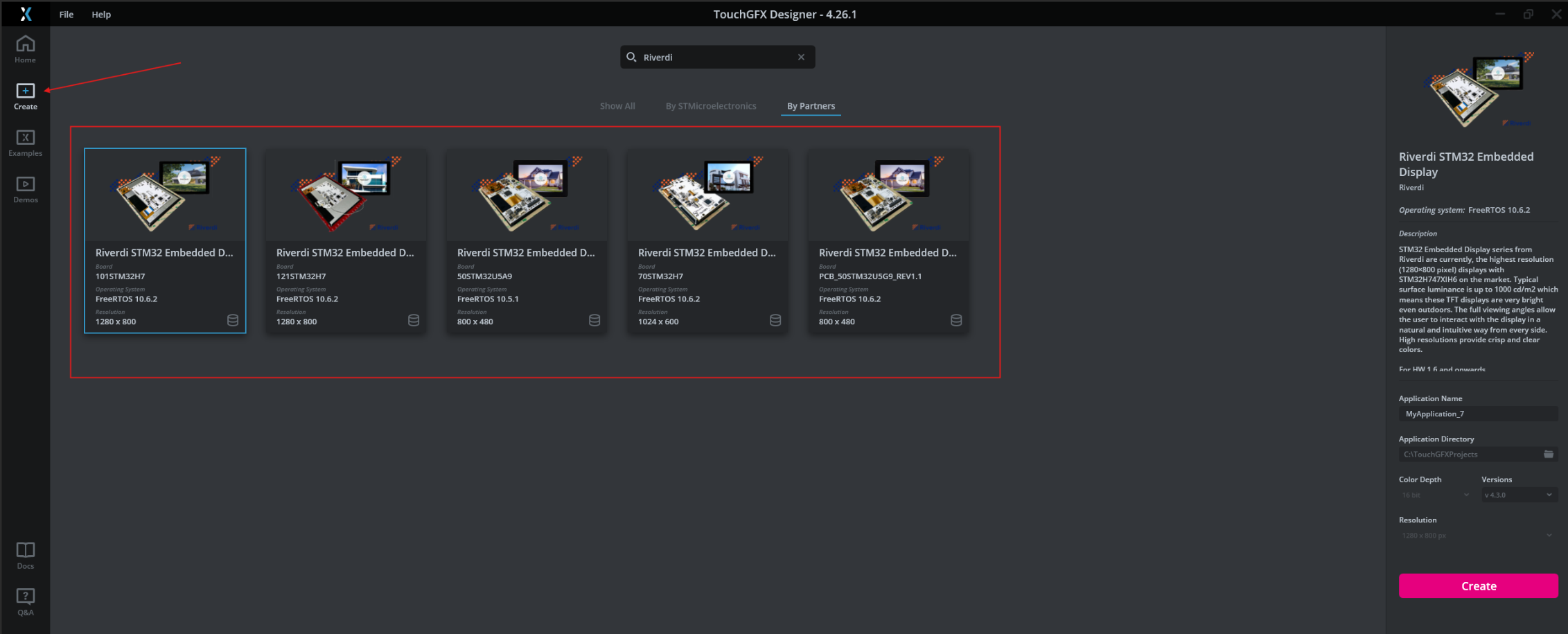
Figure 1. Selecting a Riverdi STM32 Embedded Display template in TouchGFX Designer - the correct External Loader is generated automatically in the project's GCC folder.
Programming from STM32CubeProgrammer directly (manual check required)
The situation is different when programming the firmware directly with STM32CubeProgrammer. CubeProgrammer does not always automatically select the correct External Loader for a specific Riverdi module.
The fact that STM32CubeProgrammer successfully connects to the MCU through ST-LINK does not mean that it can also access the external flash memory.
Before programming, you should therefore check the External Loaders section and make sure that the correct loader for the target Riverdi module and its external memory is selected.
If the required loader is not available on the list, the appropriate .stldr file may need to be copied to the STM32CubeProgrammer installation directory, typically:
STM32CubeProgrammer\bin\ExternalLoader
The exact loader depends on the Riverdi module family and its hardware configuration.
Programming from STM32CubeIDE
The same principle applies when programming or debugging the project directly from STM32CubeIDE. If the application uses resources located in external flash memory, the debug configuration should be checked under:
Run → Debug Configurations → Debugger → External Loaders
The appropriate loader should be added and enabled. This is especially important for TouchGFX projects where graphical resources are mapped to external memory.
What happens if the wrong loader is used?
Part of the programming process may still complete successfully even when the wrong loader is used, which can make the issue harder to diagnose. For example, the application code located in the STM32 internal flash may be programmed correctly, while the data intended for the external flash is not programmed at all.
In a TouchGFX application, this may result in:
- missing images
- missing fonts
- incorrectly displayed GUI elements
- old graphical assets remaining from a previous firmware version
- errors during external flash erase or programming
- verification errors
This is why the problem can be inconsistent: it depends on which tool and workflow you use, not on the hardware itself. This is also one possible explanation for a situation where an application works correctly when programmed directly from TouchGFX, but does not behave correctly when the same firmware is programmed using STM32CubeProgrammer – the MCU firmware itself may be present and running, while the graphical resources stored in external memory are missing or outdated.
The loader must match the exact hardware configuration
An External Loader should not be selected only based on the STM32 family. The loader is prepared for a specific hardware configuration, which may include:
- STM32 MCU
- memory interface
- external Flash device
- board configuration
Two devices using the same STM32 microcontroller may have different external flash devices or different QSPI/OSPI configurations. As a result, they may require different External Loaders. Using an incorrect .stldr file may prevent CubeProgrammer from correctly initializing, erasing, or programming the memory.
Loader reference by module family
STM32U5 A9 / G9 modules (5″)

Figure 2. Selecting a Riverdi STM32 Embedded Display template in TouchGFX Designer - the correct External Loader is generated automatically in the project's GCC folder.
STM32H7-based modules (7″, 10″, 12″)

Figure 3. External Loader for STM32H7-based modules: QSPI_STM32H747I-Riverdi-MICRON_V2.
Conclusion – always verify where your firmware data lives
When programming a Riverdi STM32 module, always verify where the different parts of the firmware are stored. If the application contains data intended for both internal flash and external flash, simply connecting to the STM32 through ST-LINK is not enough – the correct External Loader is required to properly program the external memory.
TouchGFX usually handles this configuration automatically through the template prepared for the selected hardware. However, when using STM32CubeProgrammer or STM32CubeIDE directly, always verify that the correct External Loader has actually been selected and enabled.
This should be one of the first things to check when a Riverdi module starts after programming, but the GUI is incomplete, graphical resources are missing, or the programmer reports problems accessing external flash memory.
DISCOVER OUR
Whitepaper
Achieve the perfect user-display interaction with the right Touch Sensor IC. Ever faced issues with phantom touch events or certification? Boost your R&D like a pro with our Whitepaper!
Go to our product catalog and see how you can save by quality, not on quality.